The Split Sheet Engine
TrackStage's Split Sheet Engine lets you build, send, and legally sign a split sheet agreement with your co-writers — without ever leaving your CATALOG. Enter your splits once in the RIGHTS Tab, and TrackStage handles the paperwork, the signatures, and the audit trail for you.
There are four stages to a finished split sheet: enter your splits, create the split sheet, complete & sign the agreement, and track its status.
Step One: Enter Your Splits in the RIGHTS Tab Step Two: Create the Split Sheet Step Three: Complete & Sign the Agreement Step Four: Track Status & Access Your Records
Step One: Enter Your Splits in the RIGHTS Tab
Every split sheet starts with the rights you record on your track. Get your splits and roles right here first and the rest of the process fills itself in.
- Select your track and open the RIGHTS Tab.
Choose the Primary version of your track, then click the RIGHTS Tab. - Enter your splits.
Add each rights holder and their percentages. Make sure the totals add up to 100% Writer and 100% Master — the running totals appear along the bottom of the panel. - Add roles in the ROLES/NOTES field.
Enter a role such as “Role: Lyricist” in the ROLES/NOTES field for each party if you want the roles autofilled onto the Split Sheet.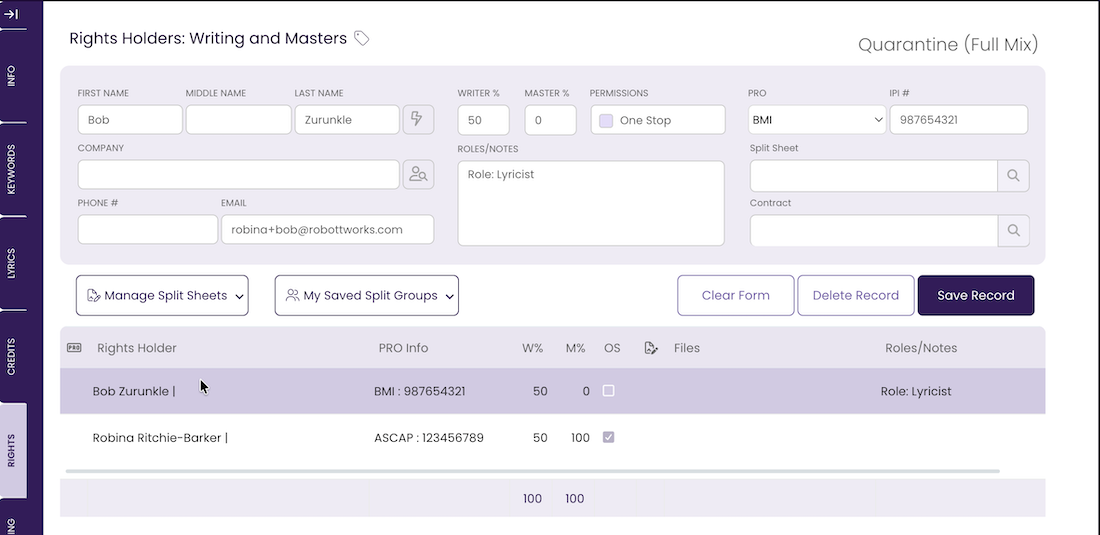
Step Two: Create the Split Sheet
With your splits and co-writer selected, the engine walks you through a short wizard to generate the agreement.
- Select your co-writer's name.
Click the co-writer's row so it becomes highlighted.NOTE: To access Manage Split Sheets you must first select a co-writer's row.
Click Manage Split Sheets.
Select Create New Split Sheet from the menu.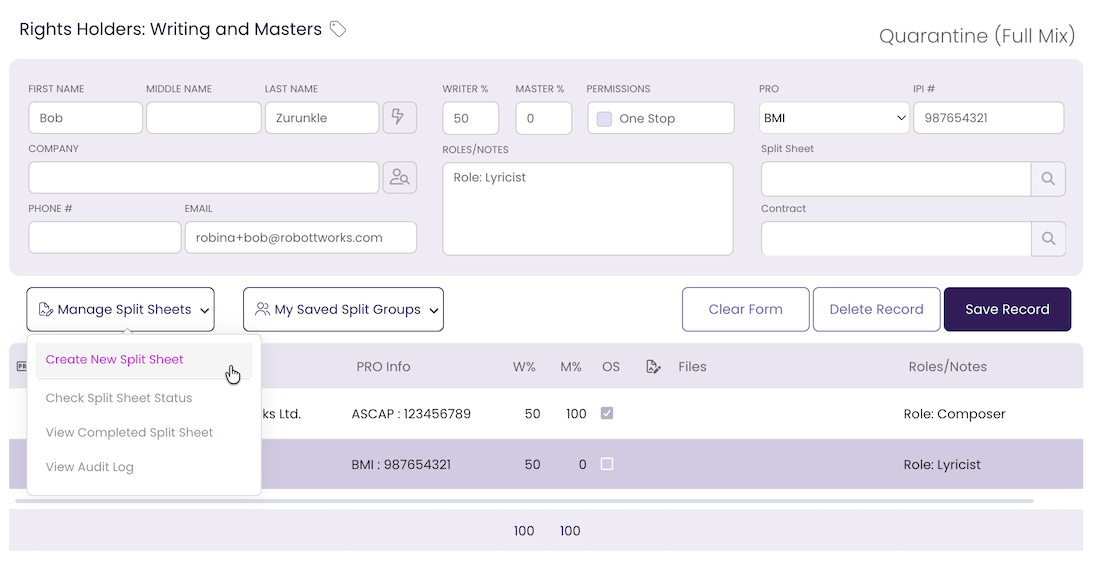
Verify the rights holders.
Ensure every contact who should be on the agreement is selected, then click the Use These Contact(s) & Continue button.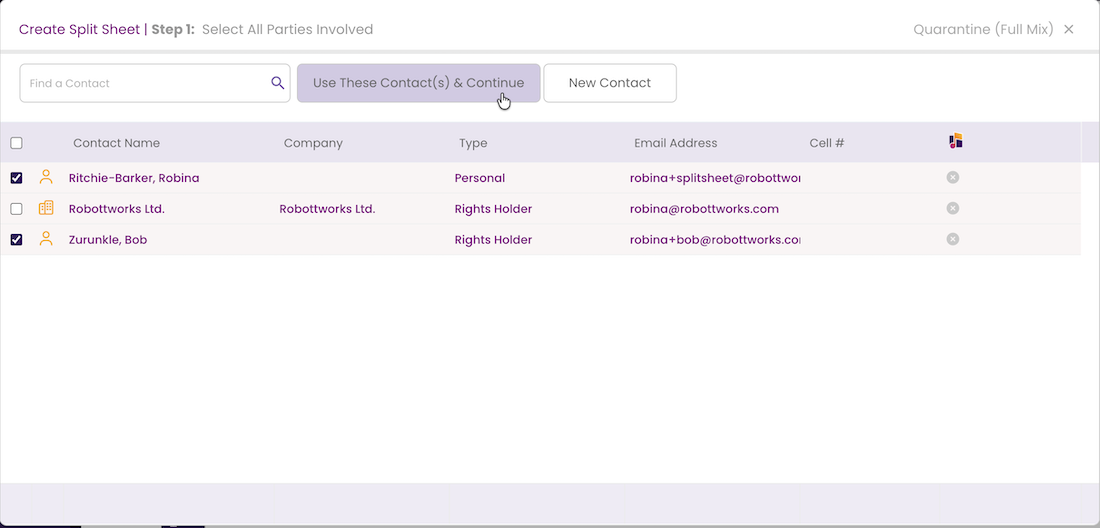
Complete any missing information.
\Confirm each party's PRO, CAE/IPI #, role(s), and Writer/Master percentages, then click Fill out Party Details & CONTINUE.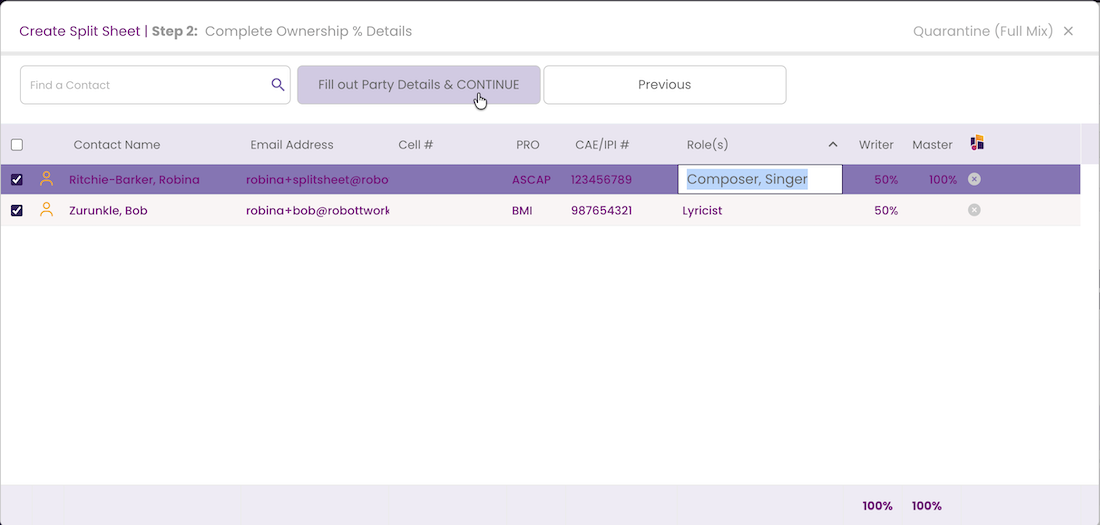
Review the Summary.
Review the summary — song/track, artists, roles, and Writer/Master totals — then click Submit.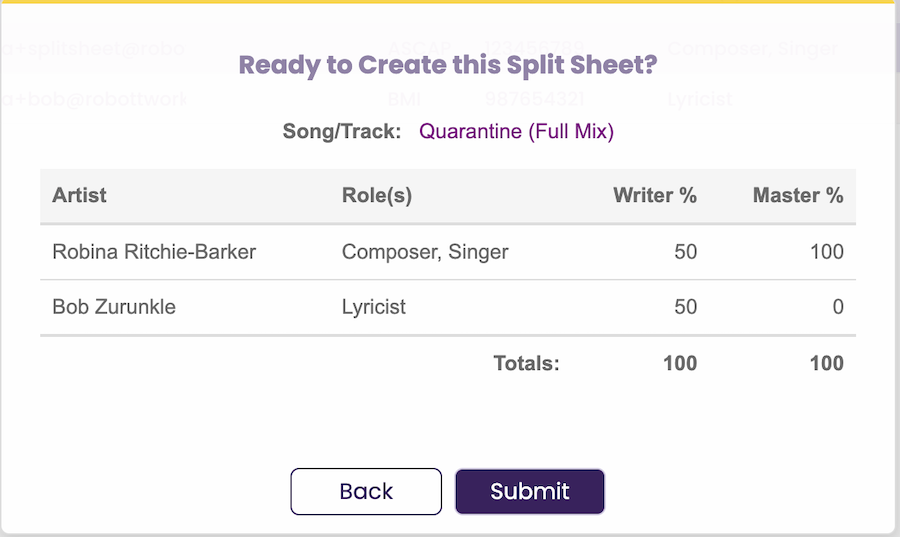
Step Three: Complete & Sign the Agreement
Once you submit the Split Sheet summary, DocuSeal© takes over to distribute the Split Sheet and collect the needed signatures. The Split Sheet is sent to you first so that you can complete the details and set the terms before it moves through the queue of your co-writers.
Click the link in the email.
DocuSeal© emails the agreement to you first. Open the “You are invited to sign a document” email and click Review and Sign.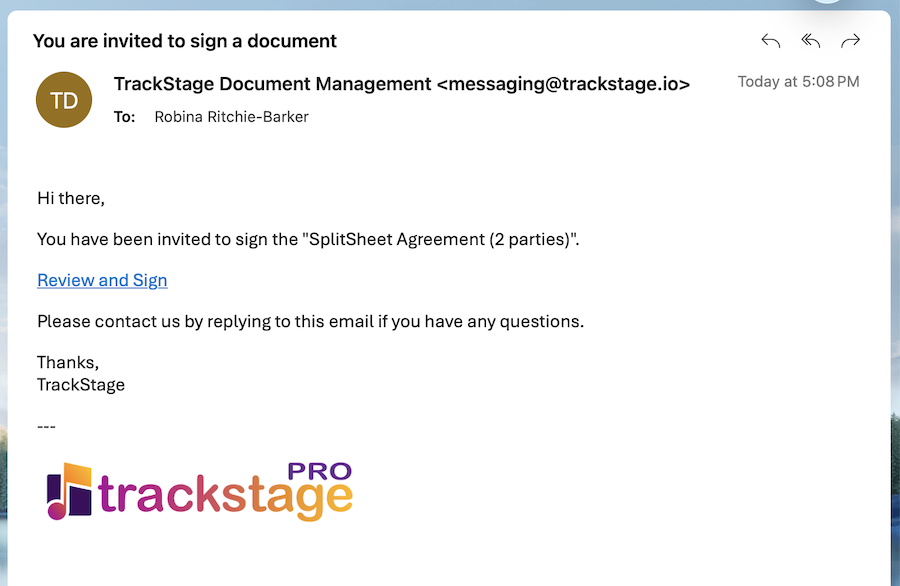
Use the wizard, or enter the information directly into the document fields.
The guided wizard steps you through each field — or you can click straight into the highlighted fields on the document.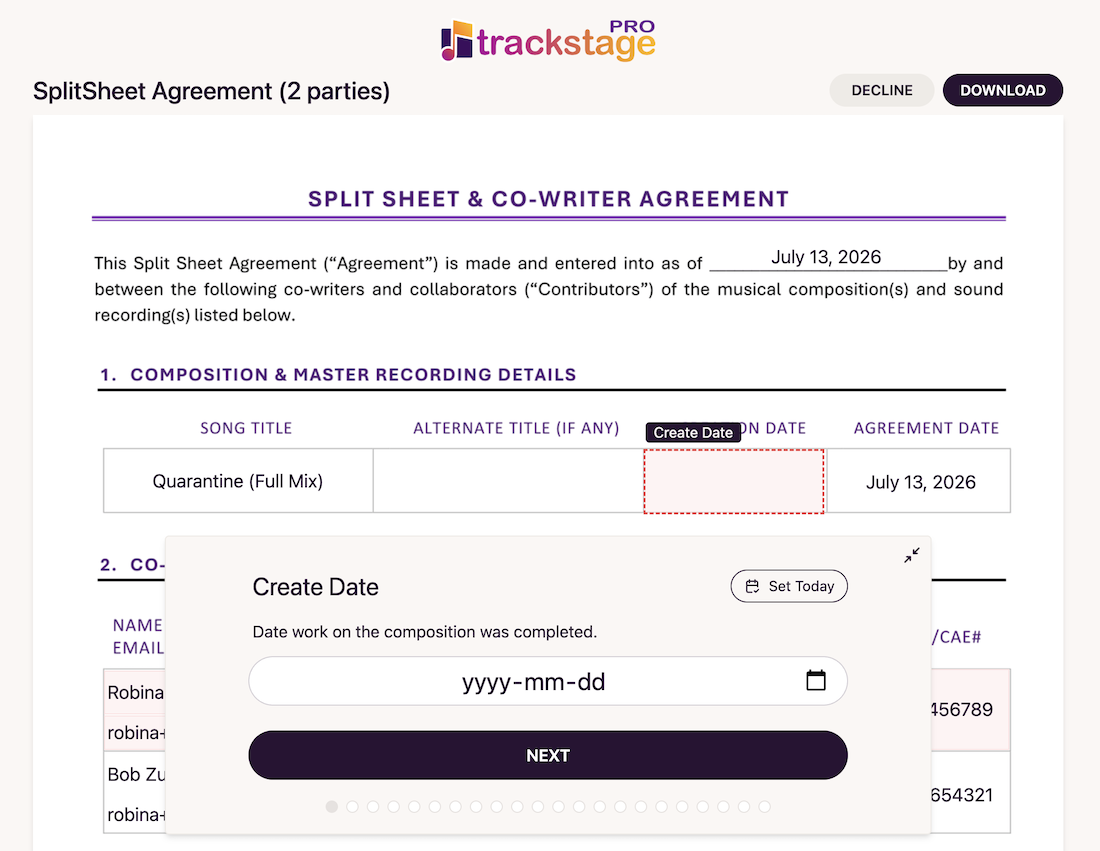
- Complete the agreement and sign.
Work through each of the terms, then sign:- •Verify your information.
- •Choose your License Authorization terms.
- •Choose your Master Recording Rights terms.
- •Add Publishing info, if applicable.
- •Add credits information and dispute-resolution parameters, if desired.
- •Sign and click the Sign & Complete button.
- •Download and/or email yourself a copy, if desired.
- The document is now prepared.
Upon signing, you'll receive a confirmation email with links to the audit log and the contract.
Step Four: Track Status & Access Your Records
Once you've signed, TrackStage moves the contract through the queue and keeps everything organized in your RIGHTS Tab.
- The contract moves to the next co-writer in the queue.
All the terms you set are already in place. Whenever a co-writer opens, signs or declines the Split Sheet, you'll receive a notification. - The split sheet is automatically added in the RIGHTS Tab.
A split sheet icon appears alongside the track so you can find it at a glance.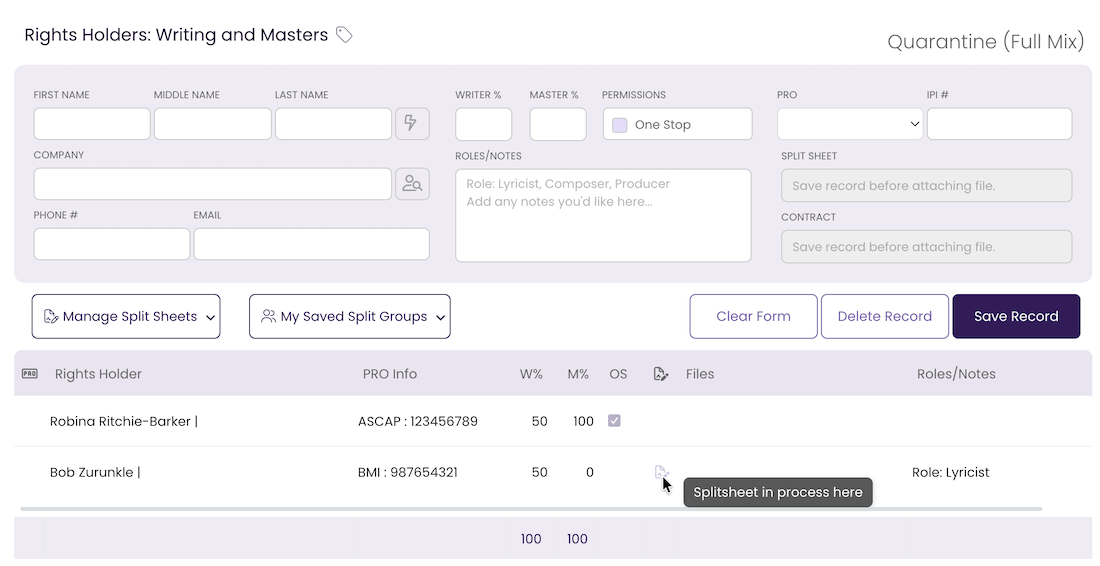
The icon changes color according to status:
Sent, Signed, or Declined. Hover the icon to see its current state at a glance.
- Check status, audit trail, and the finished sheet any time.
From the Manage Split Sheets menu:- •Check the status of signing via Manage Split Sheets > Check Split Sheet Status.
- •View the audit log — showing signing status and the dates signed of all parties — via Manage Split Sheets > View Audit Log.
- •View the completed Split Sheet by clicking View Split Sheet beside the co-writer's name, or via Manage Split Sheets > View Completed Split Sheet.
Updated: July 13, 2026